27 Bash script examples to get you started
Oct 21, 2026
/
By Ignas R.
/
11 min Read
Bash scripts automate tasks in Linux by running a sequence of shell commands from a single file. Common Bash script examples include printing text, working with variables, using loops and conditional statements, managing files, and monitoring system resources.
A Bash script typically starts with #!/bin/bash and contains commands that execute in sequence. You can create a script using a text editor, save it with a .sh extension, and run it from the terminal.
Here are some common Bash script examples and what you can use them for:
| Bash script example | What it does |
|---|---|
| Hello World | Prints text to the terminal using echo. |
| Variables | Stores and reuses values within a script. |
| Conditional statements | Runs commands based on specified conditions. |
| Loops | Repeats commands automatically. |
| File management | Creates, reads, or deletes files and directories. |
| Directory backups | Compresses files into a backup archive. |
| Website availability checks | Checks whether a website responds to HTTP requests. |

1. Hello World
Hello World is the most simple bash script to start with. We will create a new bash variable called learningbash and print out the words Hello World. First, open a new shell script file with a text editor of your choice:
nano hello.sh
Paste the following lines into it:
#!/bin/bash
#Creates a new variable with a value of "Hello World"
learningbash="Hello World"
echo $learningbash
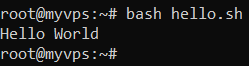
The first line (/bin/bash) is used in every bash script. It instructs the operating system to use a bash interpreter as a command interpreter.
2. Echo command
The echo bash command can be used to print out text as well as values of variables. In the following example, we will showcase how quotation marks affect the echo command. We will start by opening a new bash script file:
nano echo.sh
This simple bash script example will create a new variable and print it out while using different quotation marks.
#!/bin/bash
provider="Hostinger"
echo 'The best hosting provider is $provider'
echo "The best hosting provider is $provider"
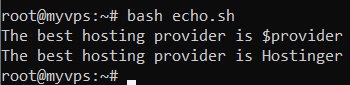
As you can see, if the echo bash command is used with double quotation marks ““, then the script will print out the actual value of a variable. Otherwise, if the single quotation marks ‘‘ are used, it will print out only the name of a variable.
3. Sleep command
The sleep command pauses a Bash script for a specified number of seconds before continuing execution. It’s useful when you need to introduce delays between commands.
For example, the following script pauses for 10 seconds, displays a message, waits another 10 seconds, and then prints a final message.
#!/bin/bash

sleep 10
echo "I've been sleeping for 10 seconds"
sleep 10
echo "I'm done sleeping!"
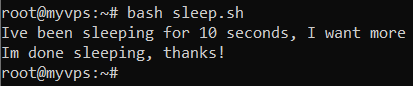
The above example starts with a simple sleep bash command that will put your system to sleep for 10 seconds. After that, we combine the previously learned echo command with sleep – this way system will sleep for 10 seconds, then print out some words, sleep again, print out some words again and end its operation.
Pro Tip
A bash script can always be terminated by clicking CTRL + C without waiting for it to finish its operation.
4. Wait command
wait is a built-in Linux command that waits for completion of running process. The wait command is used with a particular process id or job id.
Here’s how to create a wait bash script. Begin by creating a new bash file:
nano wait.sh
Paste in the following:
#!/bin/bash
wait 1234
echo “Done”
If no job ID is provided, the wait command waits until all child background jobs are completed.
5. Comments
Users can easily add comments to their bash scripts with the # symbol. It is extra useful if you’ve got a lengthy script that needs explaining on some lines.
Begin by creating a new bash script:
nano comments.sh
Then paste in the following:
#!/bin/bash
# Define a variable named Hostinger
provider="Hostinger"
# Print out the following text
echo 'The best hosting provider is $provider'
# Print out the following text with $provider variable value
echo "The best hosting provider is $provider"
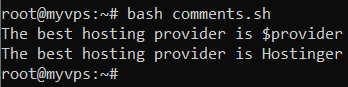
Keep in mind that bash comments are only visible on a text editor.
6. Get user input
To take input from users, we’ll use the read bash command. First, create a new bash shell file:
nano read.sh
Then, fill it with the script below:
#!/bin/bash
echo "What is your age?"
read age
echo "Wow, you look younger than $age years old"
In the above example, an age value was entered by the user. The output was then printed via the echo command.
7. Loops
A loop is an essential tool in various programming languages. To put it simply, a bash loop is a set of instructions that are repeated until a user-specified condition is reached. Start by creating a loop bash program:
nano whileloop.sh
Then paste in the following:
#!/bin/bash
n=0
while :
do
echo Countdown: $n
((n++))
done
This will work as a countdown to infinity until you press CTRL + C to stop the script.
Now that we’ve tested the while loop, we can move on to the for loop. Create a bash file for it:
nano forloop.sh
It should contain the script below:
#!/bin/bash
for (( n=2; n<=10; n++ ))
do
echo "$n seconds"
done
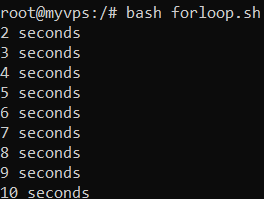
The script prints out numbers from 2 to 10 while adding the seconds keyword to it.
8. Create an array
A bash array is a data structure designed to store information in an indexed way. It is extra useful if users need to store and retrieve thousands of pieces of data fast. What makes bash arrays special is that unlike any other programming language, they can store different types of elements. For example, you can use a bash array to store both strings and numbers.
Create a new file in the current directory:
nano array.sh
Combine the freshly learned for loop with a new indexed array:
#!/bin/bash
# Create an indexed array
IndexedArray=(egg burger milk)
#Iterate over the array to get all the values
for i in "${IndexedArray[@]}";do echo "$i";done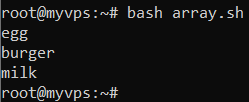
The script iterates over the IndexedArray and prints out all the values.
9. Conditional statements
The most popular and widely used conditional statement is if. Even though the if statement is easy to write and understand, it can be used in advanced shell scripts as well.
Begin with a new bash file:
nano if.sh
Paste the code below in it:
#!/bin/bash
salary=1000
expenses=800
#Check if salary and expenses are equal
if [ $salary == $expenses ];
then
    echo "Salary and expenses are equal"
#Check if salary and expenses are not equal
elif [ $salary != $expenses ];
then
    echo "Salary and expenses are not equal"
fi
This script creates two new variables and compares whether they are equal or not.
10. Functions
A bash function is a set of commands that can be reused numerous times throughout a bash script. Create a new file:
nano function.sh
Then, paste in the following code – it creates a simple Hello World function.
#!/bin/bash
hello () {
   echo 'Hello World!'
}
hello
11. Display string length
There are a couple of ways of counting string length in bash. We’ll talk about the simplest. Create a file named stringlength.sh:
nano stringlength.sh
Fill it with the following:
#!/bin/bash
# Create a new string
mystring="lets count the length of this string"
i=${#mystring}
echo "Length: $i"
Here, the # operator is used to get the length of the string variable.
12. Extract string
If users need to remove unnecessary parts from strings, they can use the Bash string extraction tools. Start by creating a new bash script:
nano extractstring.sh
The following script has 4 values, 3 of them being strings. In our example, we will extract only the number value. This can be done via the cut command. First, we instruct the command that each variable is separated by a comma by using the -d flag. Then we ask the cut command to extract the 5th value.
#!/bin/bash
cut -d , -f 5 <<< "Website,Domain,DNS,SMTP,5005"
In another example, we have a string that is mixed with some numbers. We will use expr substr commands to extract only the Hostinger text value.
#!/bin/bash
expr substr "458449Hostinger4132" 7 9
13. Find and replace string
Another useful bash script for strings is find and replace. Create a file named findreplace.sh:
nano findreplace.sh
Then paste in the following bash script:
#!/bin/bash
first="I drive a BMW and Volvo"
second="Audi"
echo "${first/BMW/"$second"}" 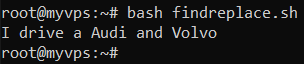
The find and replace functionality doesn’t require any special commands, it can all be done with string manipulation.
14. Concatenate strings
Concatenation is the term used for appending one string to the end of another string. Start by creating concatenation.sh file.
nano concatenation.sh
The most simple example would be the following:
#!/bin/bash
firststring="The secret is..."
secondstring="Bash"
thirdstring="$firststring$secondstring"
echo "$thirdstring"
The above script will connect the values of firststring and secondstring variables creating a whole new thirdstring.
A more advanced example would look like this:
#!/bin/bash
firststring="The secret is..."
firststring+="Bash"
echo "$firststring"
The script uses the += operator to join the strings. With this method, you can concatenate strings with only one variable.
15. Check if a number is even or odd
Odd and even numbers can be easily divided using the if statement and some simple math. Create a file named evenoddnumbers.sh:
nano evenoddnumbers.sh
The script uses the read command to read user input and divides it by 2. If the answer is 0, the number is even.
#!/bin/bash
read -p "Enter a number and I will check if its odd or even " mynumber
if [ $((mynumber%2)) -eq 0 ]
then
echo "Your number is even"
else
echo "Your number is odd."
fi
16. Generate factorial of number
The factorial of a number is the result of all positive descending integers. For example, the factorial of 5 would be 120:
5! = 5*4*3*2*1 = 120
Factorial scrips are very useful for users learning about recursion. Start by creating a .sh file executable:
factorial.sh
The following script will ask the user to enter a number they want to get the factorial of and use a for loop to calculate it.
#!/bin/bash
echo Enter the number you want to get factorial for
read mynumber
factorial=1
for ((i=1;i<=mynumber;i++))
do
factorial=$(($factorial*$i))
done
echo $factorial
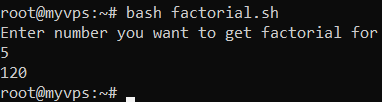
17. Create directories
It is effortless to create directories in bash unless you need to create a lot of directories quickly. In the following example, we will use the bash script to create a set of directories with the same subdirectories in each.
First, create a file named directories.sh:
nano directories.sh
Then paste in the following code:
#!/bin/bash
mkdir -p {Math,English,Geography,Arts}/{notes,examresults,portfolio}
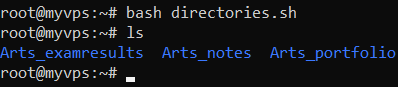
The script creates 4 main directories: Math, English, Geography, and Arts. The Notes, examresults, and portfolio subdirectories are also created inside each.
If you were to replace the / symbol in the middle with _, the script would look like this:
#!/bin/bash
mkdir -p {Math,English,Geography,Arts}_{notes,examresults,portfolio}
Here’s the output for it displaying a merge of the two directories:
18. Read files
In order to read a file in bash, you will need to create a sample file first. Do so with the following command:
nano mysamplefile.txt
Fill it with some sample data:
Out of all scripting languages, bash is the most popular one. It allows programmers to run scripts effortlessly in a variety of Linux distros.
Then create the actual script file:
nano readfiles.sh
Fill it with the following lines:
#!/bin/bash
myvalue=`cat mysamplefile.txt`
echo "$myvalue"
Running the script results in this output:

19. Print files with line count
We’ll print a file with its line count. Let’s create it first:
nano cars.txt
In our example, we will fill it with our favorite car brands:
Audi
BMW
Bentley
Maserati
Seat
Volvo
Save the file and create a new bash script:
nano printlines.sh
Then paste in the following code:
#!/bin/bash
myfile='cars.txt'
i=1
while read lines; do
echo "$i : $lines"
i=$((i+1))
done < $myfile
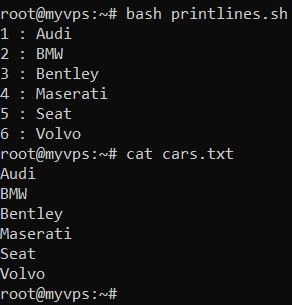
The file contents of cars.txt match the printout of the while loop script.
20. Delete files
To delete an existing file, you can use an if statement to check if the file exists and instruct the bash script to remove it. Start by creating the bash script file:
nano deletefiles.sh
The following script will create a new file named cars.txt, and then – with the help of the if statement – check if it exists and delete it.
#!/bin/bash
myfile='cars.txt'
touch $myfile
if [ -f $myfile ]; then
   rm cars.txt
   echo "$myfile deleted"
fi
21. Test if file exists
In order to check if a given file exists, users can perform conditional tests. In this case, we’ll use an if statement with a -f flag. The flag checks if a given file exists and is a regular file. Start by creating the script file:
nano exists.sh
Copy and paste the following script:
#!/bin/bash
MyFile=cars.txt
if [ -f "$MyFile" ]; then
echo "$MyFile exists."
else
echo "$MyFile does not exist."
fi
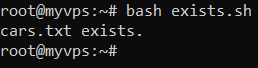
Running the script results in the following output:
22. Check inodes and disk usage
Inodes represent data units on a physical or virtual server. Each text file, video, folder, HTML file, or script is 1 inode. We’ll check how many inodes there are in a directory, as too many can cause the system to slow down significantly. Start by creating the bash script:
nano inodesdisk.sh
Paste in the following code – it will check inodes in descending order as well as show disk usage in a given directory:
#!/bin/bash
find . -printf "%h\n" | cut -d/ -f-2 | sort | uniq -c | sort -rn
du -shc * | sort -rh
It will look something like this on the command line:
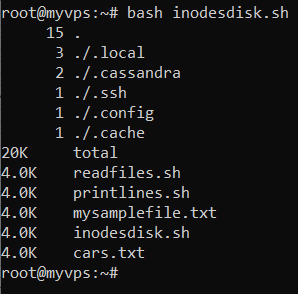
The given directory has 15 inodes and all files take up 20KB.
23. Send an email
It is possible to send mail via bash scripts as well. In order to do so, users first need a functional mail transport agent. On Ubuntu 22.04, the installation command will look like this:
sudo apt-get install mailutils
Once you’ve taken care of the mail transport agent installation, create a new bash script:
nano mail.sh
Here are its contents:
#!/bin/bash
recipient="myawesomeinbox@domain.tld"
subject="Regarding our talk"
message="Call me"
printf '%s\n' "$message" | mail -s "$subject" "$recipient"
This script stores the recipient’s email address, subject, and message in variables. It then uses the mail command to send the message.
Replace the sample email address with your recipient’s address before running the script. You’ll also need a configured mail service on your Linux system, as installing the mail command alone doesn’t guarantee successful email delivery.
24. Update packages
Keeping the system and all of its applications up to date is crucial. You can create a bash script to do it. Mind that this script requires root privileges. First, create the bash script file:
nano maintenance.sh
Fill it with these lines:
#!/bin/bash
apt-get update
apt-get upgrade
Make sure to preface the script with the sudo command when you run it:
sudo bash maintenance.sh
Apt package manager is used on Debian based distributions only. If you’re using a different distribution, make sure to update the command accordingly.
25. Show server information
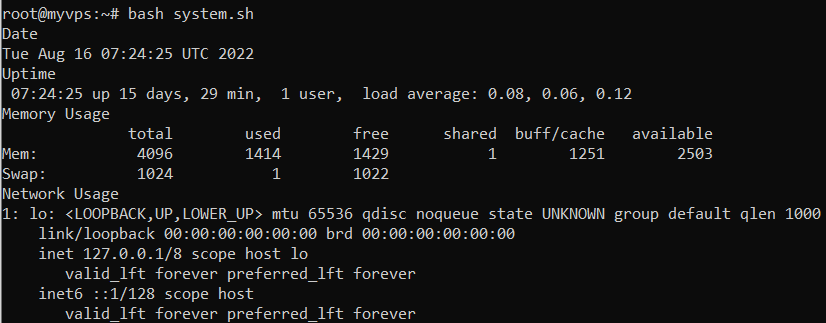
The following script will list a few important server metrics: system’s date, uptime as well as memory, and network usage statistics. We’ll start by creating a new file for it:
nano system.sh
Here’s the script for it:
#!/bin/bash
echo "Date"
date
echo "Uptime"
uptime
echo "Memory Usage"
free -m
echo "Network Usage"
ip a
26. Back up a directory
Bash scripts can automate directory backups, helping you preserve important files before making changes. The following example uses the tar command to compress a directory into a timestamped archive.
Create a script named backup.sh and add:
#!/bin/bash

source_dir="$HOME/Documents"
backup_dir="$HOME/backups"
timestamp=$(date +%Y%m%d_%H%M%S)

mkdir -p "$backup_dir"

if tar -czf "$backup_dir/backup_$timestamp.tar.gz" \
  -C "$HOME" "Documents"; then
    echo "Backup created successfully."
else
    echo "Backup failed." >&2
    exit 1
fi
The script creates a backup folder if it doesn’t exist, compresses the Documents directory, and saves the archive with a timestamp to prevent overwriting previous backups.
You can replace Documents with another directory you want to back up, updating the path in the tar command as well.
27. Check website availability
Bash scripts can also monitor whether a website responds to HTTP requests. This is useful for basic website availability checks and server monitoring.
Create a script named website-check.sh:
#!/bin/bash

url="https://example.com"

status=$(curl -L -s -o /dev/null -w "%{http_code}" \
  --max-time 15 "$url")

if [[ "$status" =~ ^2[0-9][0-9]$ ]]; then
    echo "Website is responding successfully (HTTP $status)."
else
    echo "Website check failed (HTTP $status)."
    exit 1
fi
The script uses curl to send an HTTP request, follows redirects, and checks the final response status. A 2xx status indicates a successful response, while other status codes or a connection failure trigger an error message.
Replace https://example.com with the website you want to check. This is a basic HTTP availability check, not a full website functionality test.
How to create and run a Bash script in Linux
To create and run a Bash script in Linux, you need access to a terminal and a text editor such as Nano. You’ll write your commands in a script file, make it executable, and run it from the terminal.
Follow these steps to create your first Bash script:
- Create a Bash script file. Open your Linux terminal and use Nano to create a file named
hello.sh:nano hello.sh - Add Bash commands. Enter the following code into the file:
#!/bin/bash echo "Hello, world!"The#!/bin/bashline specifies the Bash interpreter, whileechodisplays a message in the terminal. - Save the script. Press Ctrl + O, then Enter to save the file. Press Ctrl + X to exit Nano.
- Make the script executable. Run the following command to give the file execution permission:
chmod +x hello.sh - Run the Bash script. Execute the file using:
./hello.shThe terminal should display:Hello, world!
Alternatively, you can run the script using bash hello.sh without changing its executable permissions.
You can use the same process to test the Bash script examples covered earlier. Create a new .sh file, replace the sample code with your chosen example, and execute it in a safe environment. Review scripts that modify files, install packages, or change system settings before running them.
Automate Linux tasks with Bash scripts
Once you’re comfortable running Bash scripts, you can combine commands, loops, and conditional statements to automate more complex Linux tasks. Start with simple operations, such as organizing files or checking system resources, before moving on to scripts that modify server configurations.
To develop your scripting skills further:
- Automate repetitive tasks. Combine commands from different examples to handle routine file management, backups, and system monitoring.
- Test scripts before running them. Use
bash -n script.shto check for syntax errors, and test potentially destructive commands in a safe environment. - Schedule scripts automatically. Use cron to execute Bash scripts at specified times without manually starting them.
For recurring tasks, you can schedule Bash scripts using cron jobs to automate backups, system checks, and other routine maintenance operations.
All of the tutorial content on this website is subject to Hostinger's rigorous editorial standards and values.

Ignas takes great satisfaction in helping people tackle even the most complex technical issues. His current goal is to write easy-to-follow articles so that these issues will not happen at all. During his free time, Ignas likes to play video games and fix up things around his house.